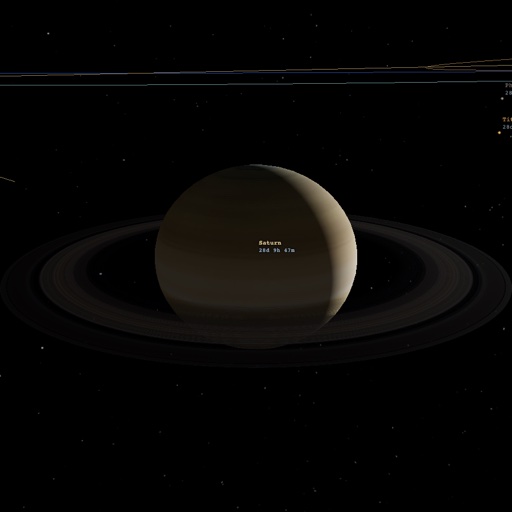
The map runs behind your desktop icons with the controls hidden. The camera moves to a new planet, moon or station every 9 seconds, and the clock is slowed so the planets turn at a speed you can watch. Everything loads from this site, so it needs an internet connection.
Download belter-charts-wallpaper.zip 22 KB
The zip has three files: project.json, a small index.html that opens this site in wallpaper mode, and a preview image.
C:\Program Files (x86)\Steam\steamapps\common\wallpaper_engine.
projects. If there's no myprojects folder in it, right-click
an empty spot, choose New > Folder and name it myprojects.
myprojects, click the address bar at the top of the window and copy the
path (Ctrl+C).
\belter-charts to the
end, so it reads ...\projects\myprojects\belter-charts. Click Extract. Windows
creates the belter-charts folder. If it asks for administrator permission, click Continue.
belter-charts. If they landed one folder deeper, move them up a level.
If it doesn't appear, open the Wallpaper Editor and drag the index.html file onto Create Wallpaper. The settings panel may be missing when you import it that way.
This setup is new and hasn't been tested on many machines yet. If it doesn't work for you, the feedback button on the main site reaches me.
https://belter-charts.pages.dev/?wallpaper=1 into the URL field and confirm.https://belter-charts.pages.dev/?wallpaper=1 as the URL.Add a Browser source with the same URL and set its width and height to your canvas, for example 1920 × 1080.
Lively, Plash and OBS don't have a settings panel. Add any of these to the end of the URL
instead, for example
https://belter-charts.pages.dev/?wallpaper=1&labels=false&stopseconds=20.
&labels=false | hide the labels on bodies and stations |
&traffic=false | hide the ship traffic |
&bloom=false | turn off the glow around bright objects, a little lighter on the graphics card |
&stopseconds=20 | seconds at each body, 3 to 120 (default 9) |
&clockspeed=1 | hours of story time per second, 0 to 48 (default 0.24) |